
Wot-Box User Guide
Welcome to Wot-Box! This guide will help you understand how to organize, digitize, and share your storage boxes and inventory effortlessly using our powerful AI-driven QR code labeling system.
1. Creating and Scanning Boxes
The core feature of Wot-Box is instantly cataloging the contents of a physical box using your camera.
- Click the New Box button on your dashboard.
- Give the box a memorable name and an optional description.
- Take a clear, well-lit photo of the items inside the box. You can take multiple photos if the box is deep.
- Our AI will automatically scan the images and generate a searchable list of everything it detects!
2. Managing Items & Tags
While the AI does the heavy lifting, you stay in control.
- Pinning Items: AI-detected items might change if you scan a new photo. If you want to permanently save an item to the list, click the Pin icon next to it.
- Manual Items: You can always manually type in items that the AI might have missed. These are permanently saved automatically.
- Tags: Assign flexible tags like #camping or #winter to your boxes to easily group them together.
3. QR Code Labels
Bridging the digital and physical world.
- Every box automatically generates a unique QR Code.
- Click Print QR Label to print a cleanly formatted label to stick on your physical box.
- Scanning the physical label with any smartphone camera will instantly open that exact box's inventory page in Wot-Box.
4. Sharing & Teams
Wot-Box is built for collaboration, tracking items across families or professional groups.
- Direct Sharing: Open a box's Share Settings and type in someone's email address to instantly grant them access.
- Teams & Families: Click Teams on your dashboard. Administrators can group users together into recurring teams.
- Instead of sharing a box with 5 individual people, you can share it with the "Family" team in one click.
- Any user with access to a box is granted full collaborative edit rights.
5. Powerful Search
Never lose anything again.
- Use the main search bar on your dashboard.
- Typing "Glue" won't just search the titles of your boxes, it will actively search the deep inventory contents spanning across all your boxes, tagging, and descriptions instantly.
6. Photo Tips for Best Results
The quality of your photos directly affects how accurately Wot-Box can identify your items. Follow these tips to get the best results from our AI scanner.
Pro Tips for Better Searchability
- Show brand logos: If your items have recognizable branding (Sony, Apple, Makita, etc.), make the logo or label face the camera. This lets you search by brand name later!
- Take multiple shots: For deep boxes with layered contents, take several photos as you remove each layer. Wot-Box combines all detected items from every photo into one complete list.
- Spread items out: If possible, spread items apart slightly so the AI can distinguish between individual objects rather than seeing one big pile.
- Capture text and labels: If something has a product name, model number, or label on it, angle it so it's readable. The AI can pick up text and add it to the item description.
Multi-Layer Photography
Don't worry about capturing everything in a single shot! You can add as many photos as you need to a single box. For deep containers, take a photo of the top layer, remove some items, then photograph the next layer. Wot-Box will merge all the detected items from every photo into one comprehensive inventory list. Nothing gets missed.
Good Examples
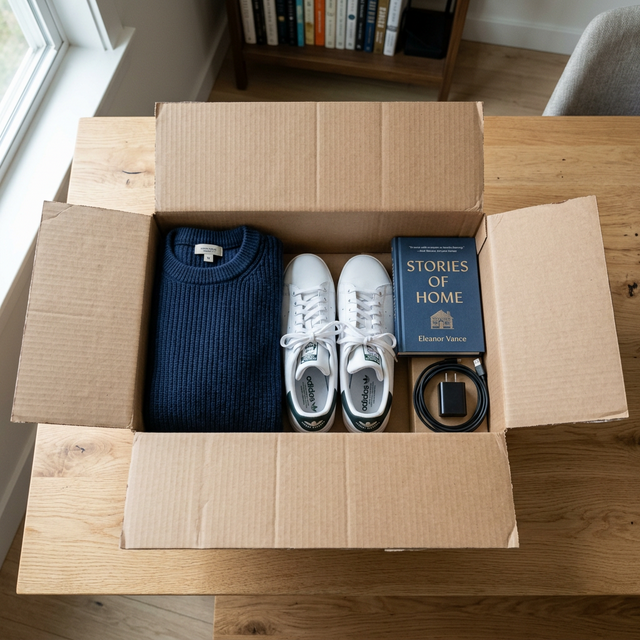
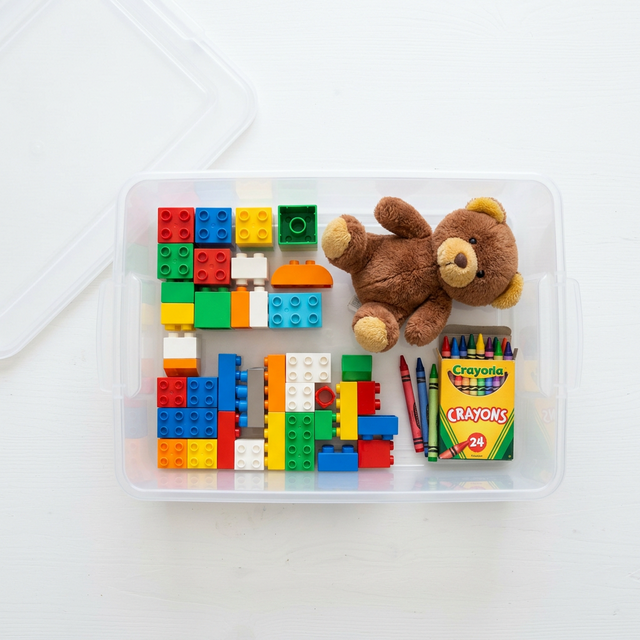
What to Avoid
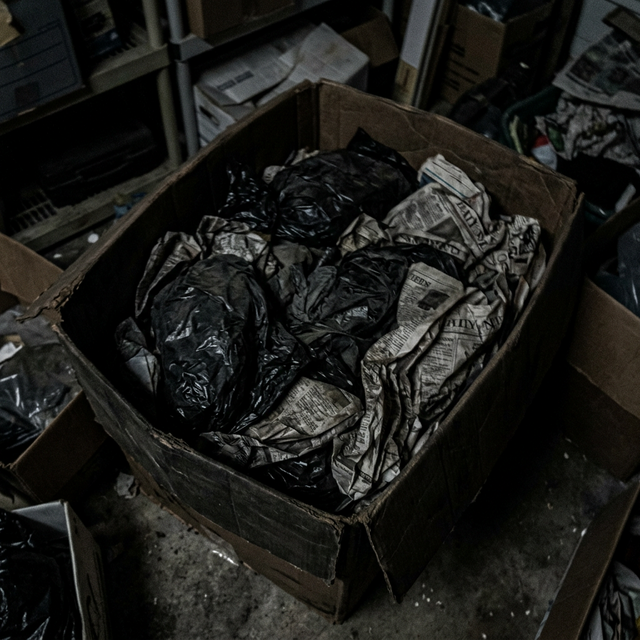
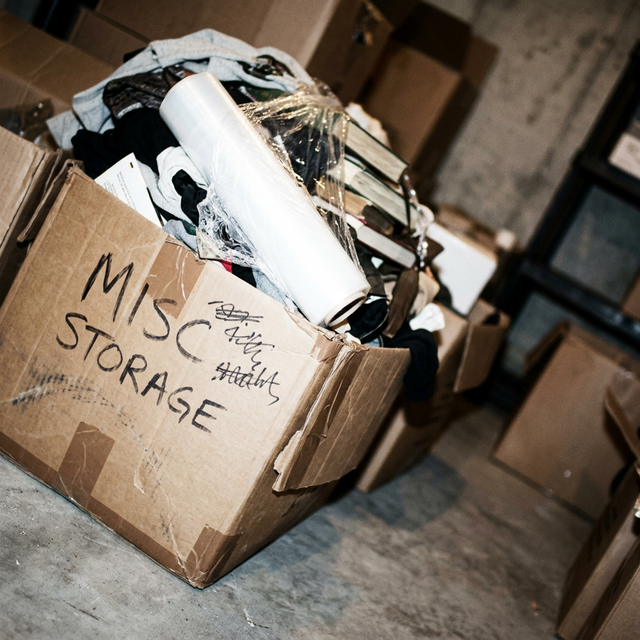
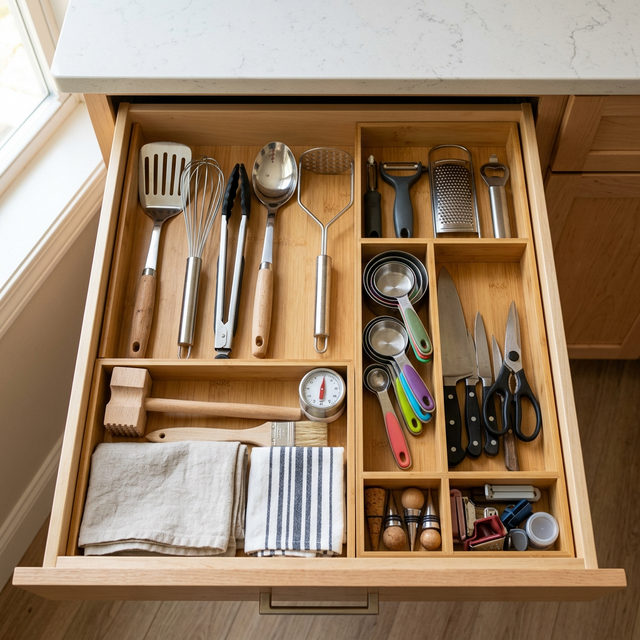
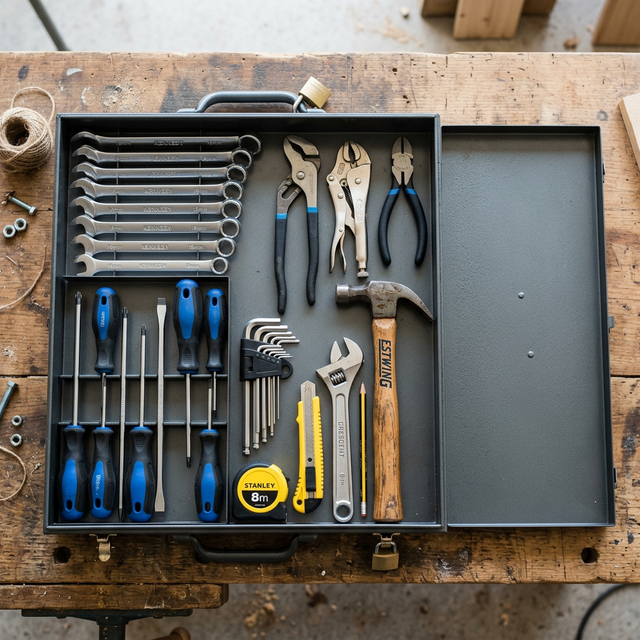
7. Other Uses & Inspiration
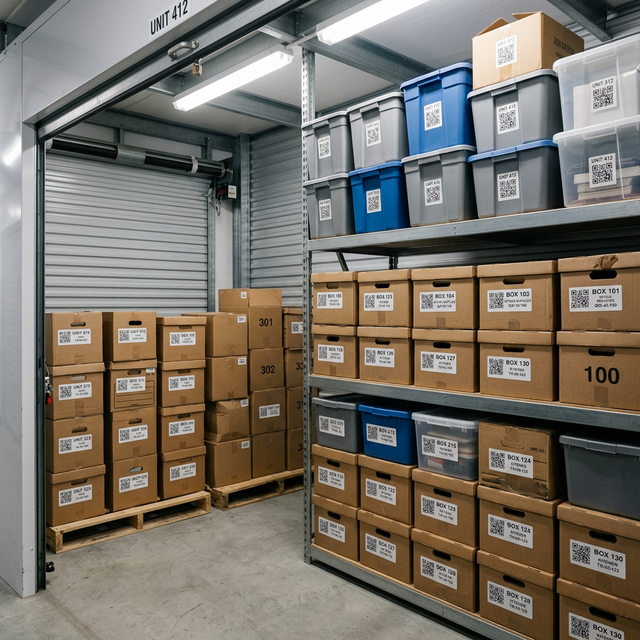
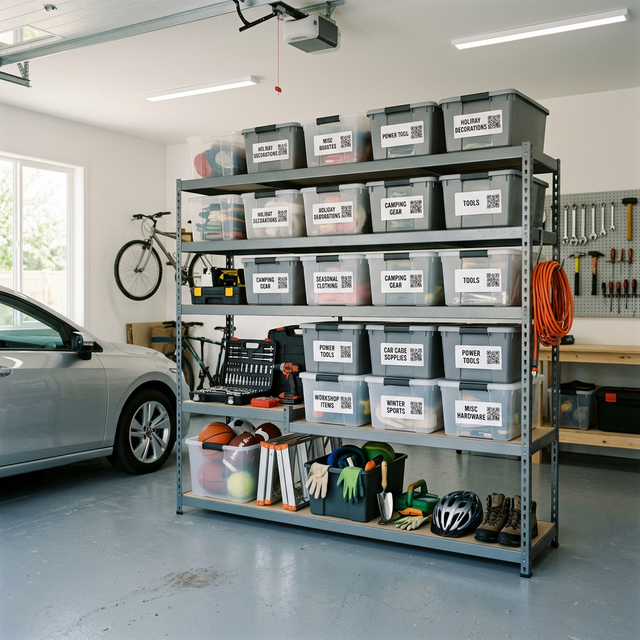
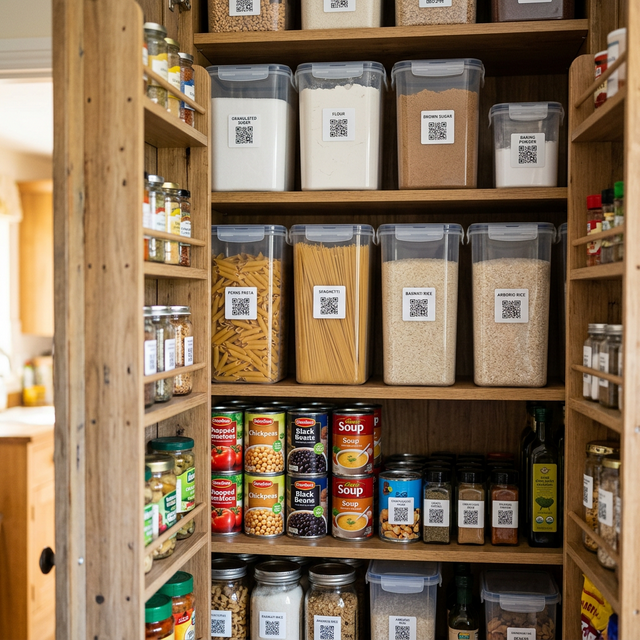
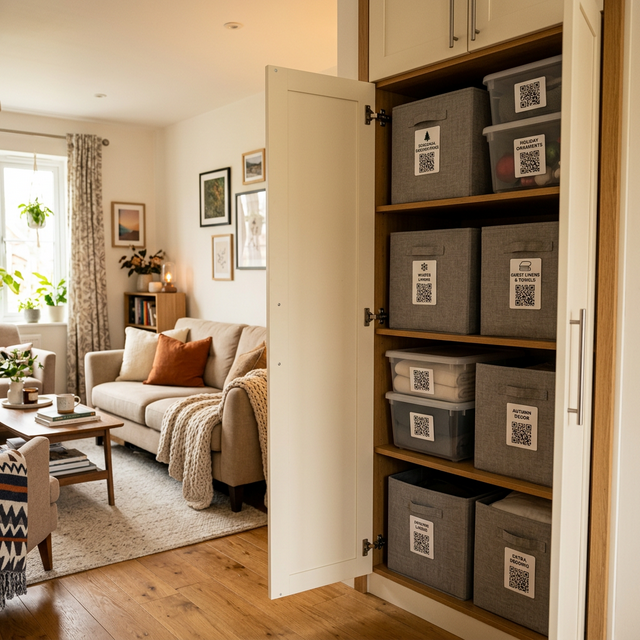
Wot-Box isn't just for moving house! Here are some popular ways people use Wot-Box to stay organized in everyday life.
8. Frequently Asked Questions (FAQ)
How does the search function work?
Search is extremely powerful. When you type a query, Wot-Box doesn't just look at the names of your boxes and items—it instantly searches through brands, colors, custom tags, descriptions, and even text identified by the AI on the items themselves.
Do I need to buy special QR code labels?
No! You can print the QR labels using any standard printer on regular paper and tape them to your boxes, or use standard printable sticker sheets.
What if the AI misses an item in my photo?
You can easily add items manually to any box's inventory. Manual items always stay, and will never be overwritten by future AI scans.
Are my photos and box contents private?
Yes. Your boxes and contents are completely private and tied to your secure account. They are only visible to others if you explicitly choose to share a box with them.
Can I use Wot-Box for my business?
Absolutely. Many users rely on our platform for tracking business inventory, tools, and assets. We offer flexible pricing tiers designed to scale with your usage needs.
If I replace a photo, will my manual notes get deleted?
No. The system will only replace unpinned AI-generated items when you take a new photo. Any items you've added manually or explicitly "pinned" are kept safe and merged with the new scan results.